This guide describes the installation and configuration of the Rhythm WordPress plugin. This plugin is intended for use in Single Sign-On (SSO) scenarios between a WordPress site and the Rhythm API.
In all of these scenarios, user Authentication is first completed using the Auth0 WordPress plugin.
The Auth0 WordPress plugin will let you authenticate a user, but Auth0 has no knowledge of the user’s membership or other statuses within Rhythm.
The Rhythm WordPress plugin augments the authentication flow by automatically assigning WordPress roles to users for each Rhythm Portal Security Policies for which they qualify.
You can create security policies for active members, committee members, or other ad-hoc eligibility requirements. See the Security Policies guide for more info.
Before installing the Rhythm WordPress plugin, you should have a WordPress site with the Auth0 plugin installed and configured for your Auth0 tenant.
The field Auth0 Membership API has been deprecated and replaced with the Rhythm Tenant ID field. If the value in Auth0 Memebership API was previously:https://partners.api.rhythmsoftware.com/fusionspan/faa.org/details
then the value for Rhythm Tenant ID should be:faa.org
Once the Rhythm WordPress plugin has been installed, two new custom fields will be created under Settings > General called Rhythm Tenant ID and Rhythm Event ID.
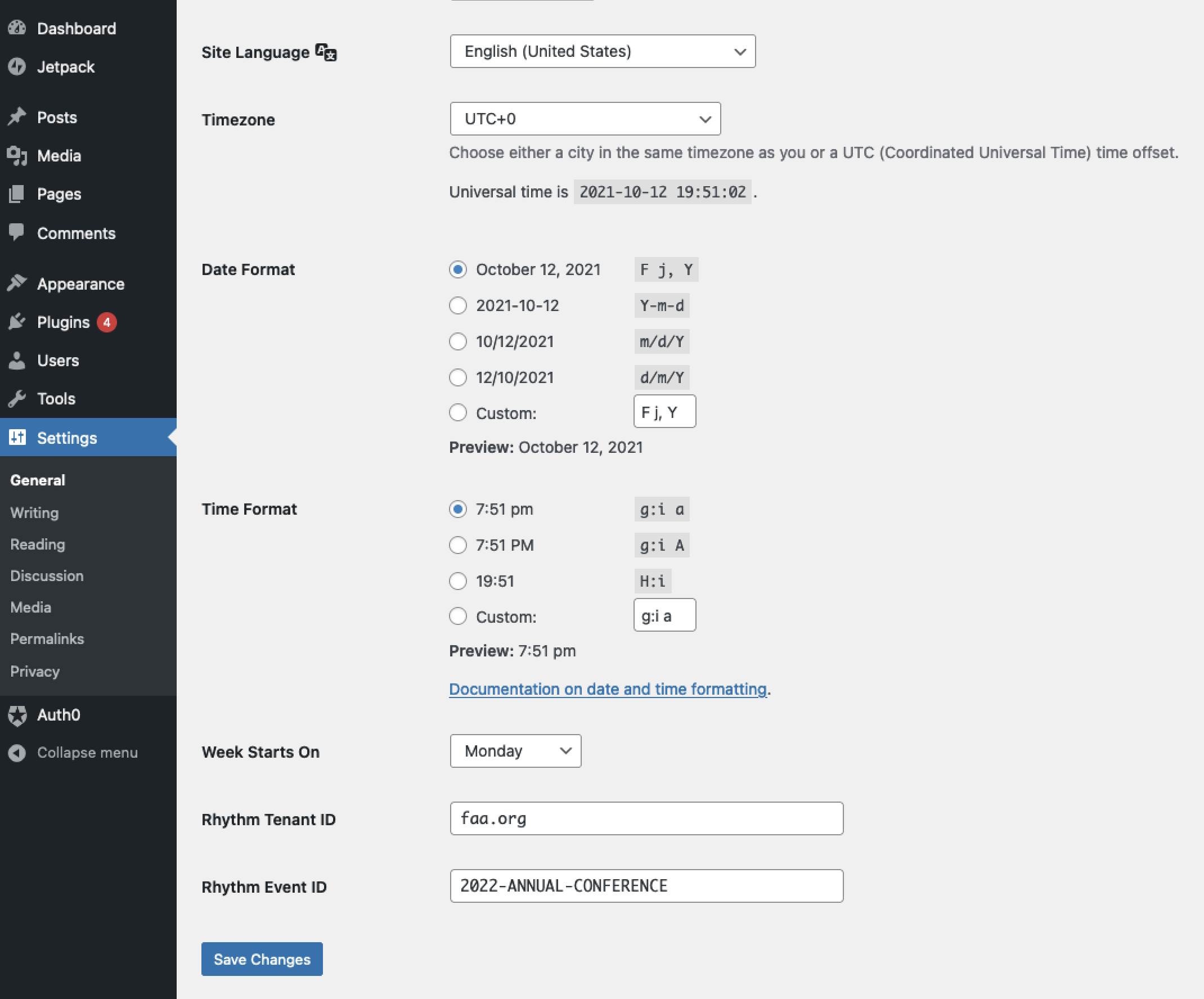
Rhythm Tenant ID must be populated with your Rhythm Tenant ID, which is normally your public domain name.
If you do not know your Rhythm Tenant ID, please log a ticket in ZenDesk.
For event specific websites, the Rhythm Event ID may optionally be populated with the ID of an event managed in Rhythm. This allows you to define security policies that will assign WordPress roles to registrants, speakers, exhibitors, etc. for that specific event.
Rhythm strongly recommends using the Auth0 Universal Login option for authentication.
This login method is compatible with the widest range of browsers and mobile devices and provides the most consistent experience for users.
To enable Universal Login, please confirm the Universal Login Page has been enabled in the Auth0 plugin settings:
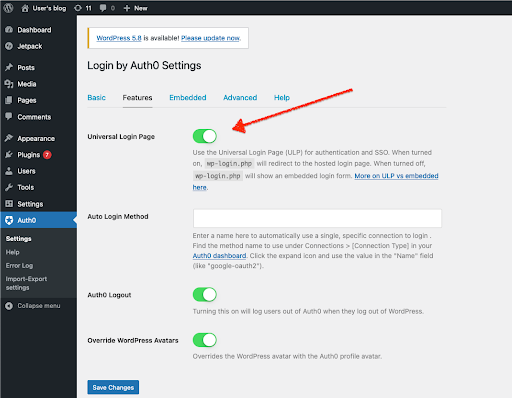
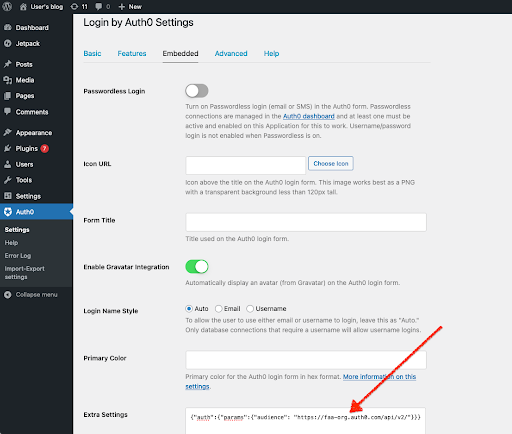
If you must use the embedded login, first disable the Universal Login Page by toggling the setting above. Then, under Extra Settings, you must specify the following settings replacing faa-org.auth0.com with the domain for your Auth0 tenant:
{"auth":{"params":{"audience": "https://faa-org.auth0.com/api/v2/"}}}
This setting is not required for Universal Login and can safely be removed in those scenarios.
You can download the Rhythm WordPress plugin at https://assets.cdn.rhythmsoftware.com/plugins/wordpress/rhythm-sso.zip